
Monthly Schedule Printable
Print a monthly schedule for any month and year in seconds. Choose Sunday or Monday start, add your own events to specific days, include a notes column or a weekly goals row, and print a clean page for the fridge, planner or office wall.
- Free to use
- No sign-up
- Runs in your browser
Create a monthly schedule
Printable Planner Set (Monthly, Weekly, Daily)
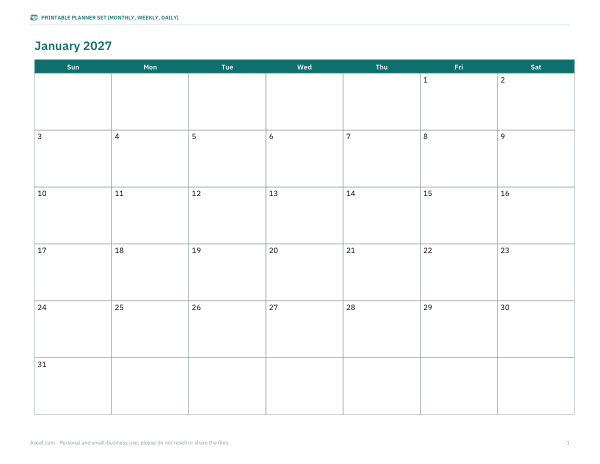
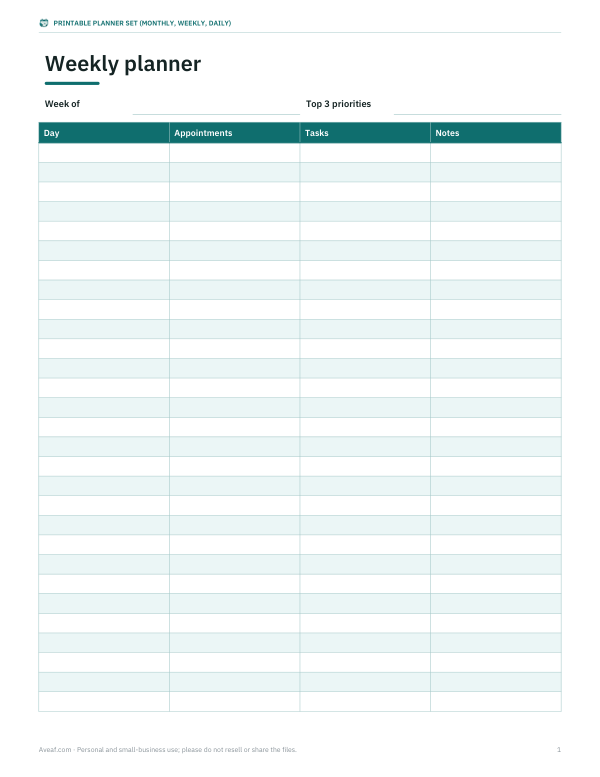
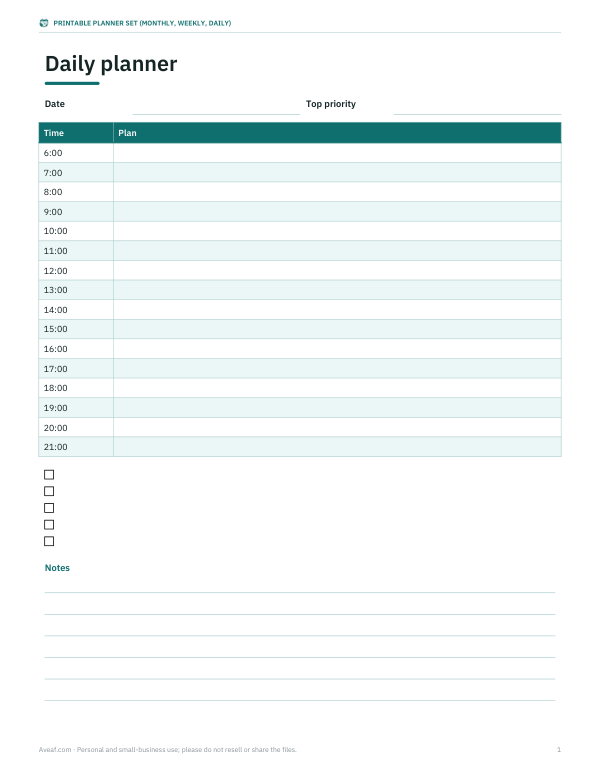
Undated monthly, weekly and daily planner pages plus a 12-month 2027 calendar set, in PDF and editable Word.
- 12-month 2027 calendars (PDF)
- Weekly planner (PDF, DOCX)
- Daily planner (PDF, DOCX)
Formats: PDF, DOCX, XLSX. Instant download after payment (link valid 72 hours, up to 5 downloads). AI-assisted: the templates were drafted with AI help and reviewed and laid out before publishing.
$4.00 USD, one-time 3 files · about $1.33 each
- Instant download
- 7-day refund
- Secure checkout by Stripe
7-day money-back guarantee. Full refund within 7 days of purchase, even after you download.
Full refund within 7 days — see the refund policy and license.
New · 5 files · PDF
Illustrated 2027 Wall Calendar
Two illustrated 2027 wall calendars to print at home: Seasons (a painted landscape for every month) and Birth Flowers (a watercolor of each month's flower).
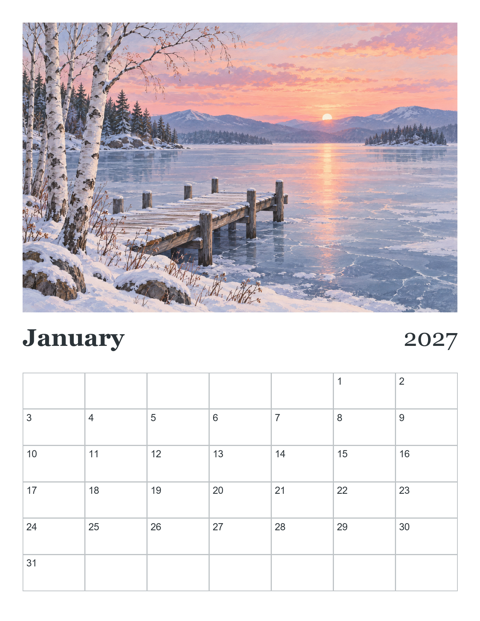
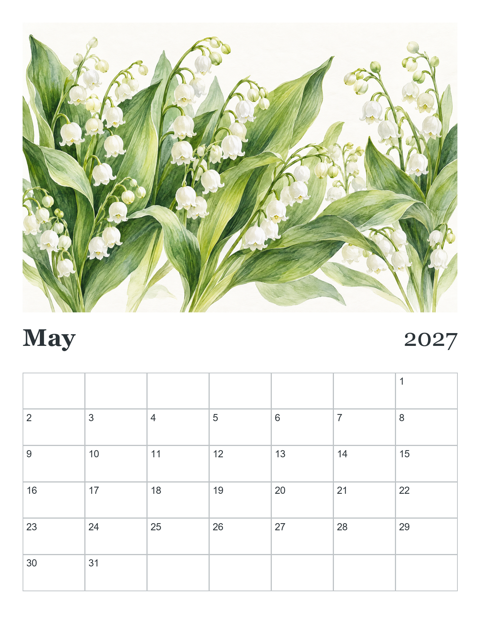
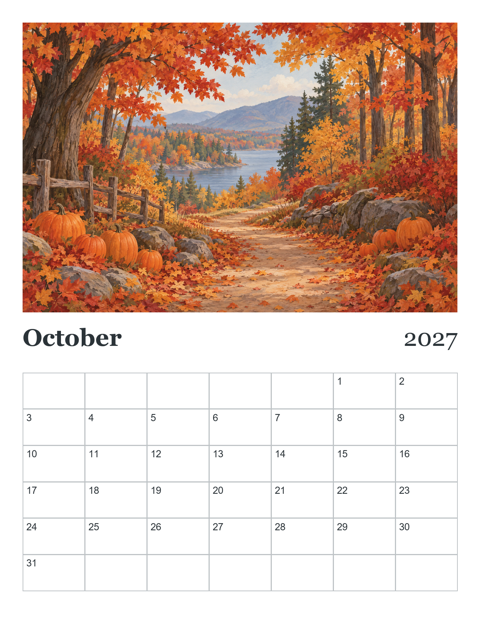
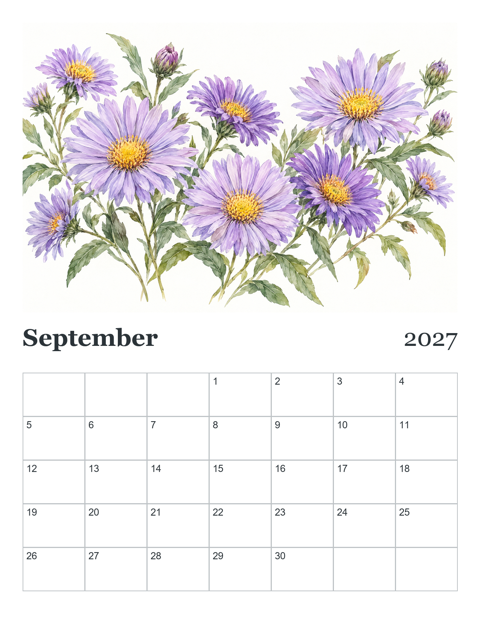
- Seasons calendar, Letter, Sunday start (PDF, 13 pages)
- Seasons calendar, A4, Monday start (PDF, 13 pages)
- Birth Flowers calendar, Letter, Sunday start (PDF, 13 pages)
- + 2 more
$9.00 USD, one-time 5 files · about $1.80 each
- Instant download
- 7-day refund
- Secure checkout by Stripe
7-day money-back guarantee. Full refund within 7 days of purchase, even after you download.
Artwork created with AI image tools, then selected and laid out for print.
Free printables
Single sheets you can print right now, no sign-up. The full pack adds every sheet in one download plus the editable files.
How to make your monthly schedule
- Choose the month and year.
- Pick whether weeks start on Sunday (common in the US) or Monday (common in Europe and for work planning).
- Add events one per line as “day | text”, such as “12 | Dentist 3 pm”. Several events can share a day.
- Choose a notes column for reminders or a weekly goals row for planning.
- Print in landscape for the largest day boxes, or save as a PDF to share.
The calendar is calculated for the actual month, so the first day falls on the correct weekday and months have the right number of days, including 29 February in leap years.
Ways to use a monthly schedule
- Family calendar — school events, activities, appointments and birthdays on the fridge.
- Work planning — deadlines, meetings and time off at a glance.
- Shift schedules — who works which days; add names in the events list.
- Bill and payment tracker — due dates for rent, utilities and subscriptions.
- Study plan — assignments, revision blocks and exam dates.
- Habit or fitness plan — mark workouts or tick off daily habits.
- Content calendar — planned posts and newsletters.
Tips for planning a month
- Start with fixed commitments: work, school, appointments, bills.
- Add deadlines, then block time before each one to work toward it.
- Leave some days lighter — overbooked months fall apart after the first surprise.
- Use a weekly goals row to break monthly goals into weekly steps.
- Review the schedule every Sunday or Monday and adjust the week ahead.
- Keep the printed schedule where everyone who needs it will see it.
Worked example
For a family in October with Sunday-start weeks, events are entered as “5 | Team meeting 10:00”, “12 | Dentist 15:00”, “20 | Rent due” and “28 | Mia's birthday”. The printed page shows October with the 1st on the correct weekday, each event in its day box, and a notes column on the right for the school lunch menu and weekend plans. A second copy with the weekly goals row goes into a work planner.
Monthly versus weekly and daily planning
| View | Best for |
|---|---|
| Monthly | Big picture: deadlines, appointments, events, shifts |
| Weekly | Balancing workload and tasks across days |
| Daily | Time blocking and detailed to-do lists |
Many people combine them: a monthly schedule on the wall for commitments, and a weekly or daily planner for tasks. The paid pack includes all three formats.
Choosing a layout: notes column or weekly goals
A notes column on the right of each week gives space for things that belong to the week rather than a day — a shopping list, the school lunch menu, reminders to book something. A weekly goals row below each week suits people who plan by week: write two or three outcomes for the week and tick them off on Friday. Choose “None” for the largest possible day boxes, which works best for shift schedules and busy family calendars where every day has several entries.
Planning a month in fifteen minutes
- Collect dates from school newsletters, work calendars, bills and invitations before you start.
- Enter fixed appointments and deadlines first, with times.
- Add recurring commitments such as training nights or bin day.
- Mark birthdays and events that need preparation, and add a reminder a few days earlier to buy a card or gift.
- Look for overloaded days and move anything flexible.
- Print, post it where it will be seen, and add handwritten changes as the month goes on.
Reprint mid-month if the page gets crowded with changes; the events list makes it quick to update.
Shift schedules and rotas
For a small team rota, enter each shift as an event — “3 | Sam early, Lee late” — so the printed month shows who is on each day. Keep a master list of shifts in a text file and paste it in each month. When swaps happen, edit the line and reprint. For larger teams, a weekly rota in a spreadsheet with one row per person is easier to read; the monthly view is best for showing the overall pattern and days off.
Printing tips
Landscape orientation gives larger day boxes for handwriting. Choose “Fit to page” if your printer cuts off the edges, and select “Background graphics” if you want the header shading. For a durable wall calendar, print on heavier paper or card and use a magnetic clip or frame.
Colour-coding and sharing
If several people share one schedule, give each person a colour and mark their events with a highlighter or coloured dot after printing — a quick glance shows who has what. For work teams, print a copy for the notice board and keep the digital list of events as the master copy so updates are easy to reprint. For bills and subscriptions, write the amount beside each due date; totalling the month helps with budgeting.
Frequently asked questions
Can I print any month and year?
Yes, any month from any year; leap years are handled automatically.
Can the week start on Monday?
Yes, choose Monday in the week start option.
How do I add events?
Type one per line as “day | text”. Several events can go on the same day.
Is the schedule saved?
No. Print it or save as PDF; the page does not store your events.
What paper size is best?
US Letter or A4 in landscape. Tabloid gives even bigger boxes for wall use.
Can I print a blank schedule?
Yes, clear the events box before printing.
Can I print a schedule for a whole year?
Print each month in turn, or buy the planner set, which includes all twelve months of 2027.
Does it work on a phone?
Yes, you can fill it in on a phone, but printing from a computer usually gives better control over paper size and orientation.
How do I show public holidays?
Add them as events, for example “25 | Christmas Day”. Holidays differ by country and region, so the page does not insert them automatically.
Can I change the colours?
The printed page uses black and light grey for economical printing; colour-code by hand with highlighters after printing.